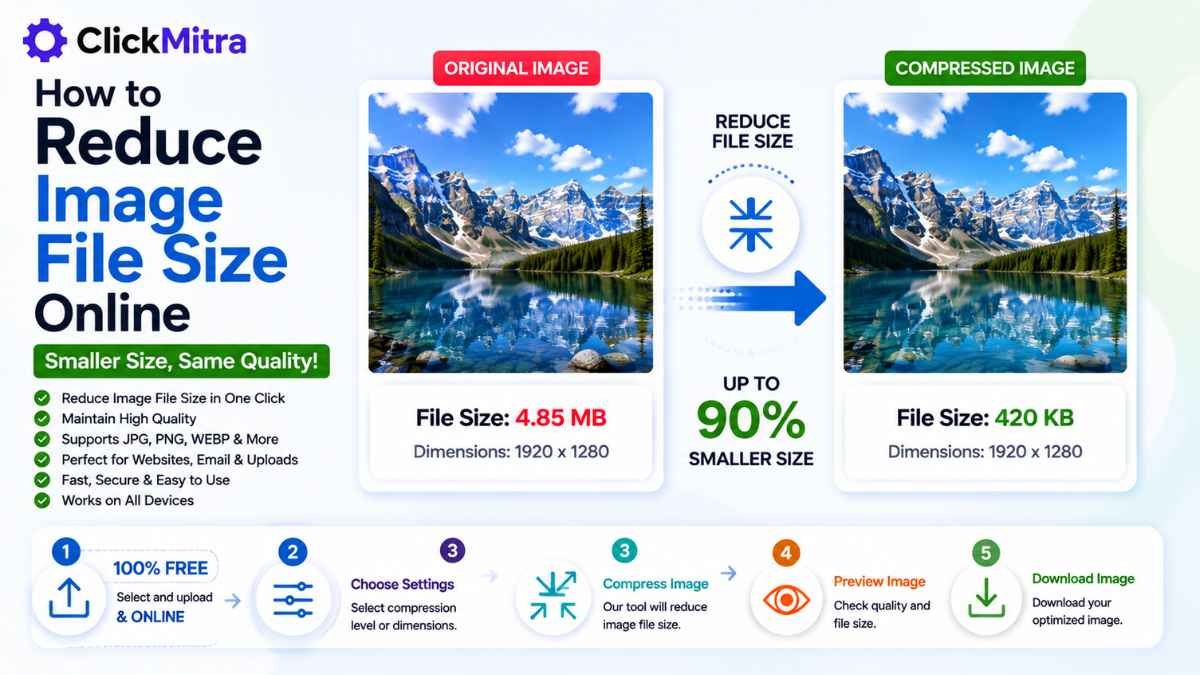
How to Reduce Image File Size Online
Learn how to reduce image file size online using compression and resizing. Make JPG, PNG and other images smaller for websites, email, uploads and sharing.
Large image files can be a problem when you need to upload pictures to a website, send them by email, submit them through an online form, or share them with someone. A high-resolution image can easily be several megabytes, even when you don't need that much data for the intended use.
If you're looking for How to Reduce Image File Size Online, you can use an online image compressor or resizing tool to create a smaller image without installing complicated software.
In this guide, we'll explain how to reduce image file size online, the difference between compression and resizing, how to reduce JPG and PNG file sizes, and how to maintain good image quality.
How to Reduce Image File Size Online
The simplest way to make an image file smaller is to use an online image compression tool.
The basic process is:
- Open an online image compressor.
- Select your image.
- Upload the image.
- Start the compression process.
- Download the smaller image.
- Check the final quality and file size.
You can reduce image file size online directly from your browser without installing Photoshop or another image-editing application.
Why Reduce Image File Size?
There are several reasons to make an image file smaller.
A large image can be inconvenient when:
- Uploading images to a website
- Sending email attachments
- Submitting online forms
- Sharing images through messaging apps
- Storing a large photo collection
- Uploading product images
- Improving website loading speed
When you reduce image file size online, the resulting image takes up less storage space and generally requires less data to upload or transfer.
How to Reduce Image File Size Online Step by Step
Step 1: Select Your Image
First, choose the image you want to make smaller.
You can use JPG, PNG, WebP, or another supported image format depending on the tool.
Before processing an important photograph or graphic, keep a copy of the original.
Step 2: Open an Online Image Compressor
Open ClickMitra's image compression tool.
An online image compressor allows you to reduce image file size online directly through your browser.
You don't need to install dedicated image-editing software just to reduce the size of an image.
Step 3: Upload the Image
Select the image from your computer, phone, tablet, or other device.
Upload the file to the image tool and wait for it to finish processing.
Step 4: Compress the Image
Start the compression process.
The tool reduces unnecessary image data and creates a smaller version of the original file.
The amount of reduction depends on the image format, dimensions, original file size, and compression level.
Step 5: Download the Smaller Image
Once processing is complete, download the optimized image.
Check the file size and open the image to make sure the quality is suitable for your intended use.
This is the easiest way to reduce image file size online without manually editing the image.
Image File Size vs Image Dimensions
These terms are often confused.
Image dimensions refer to the width and height of an image in pixels.
For example:
4000 × 3000 pixels
File size refers to the amount of storage the image occupies.
For example:
5 MB
You can reduce the file size without changing the dimensions by compressing the image.
You can also reduce the dimensions, for example:
4000 × 3000 → 2000 × 1500 pixels
Reducing dimensions can also result in a much smaller file because the image contains fewer pixels.
How to Reduce Image File Size Without Losing Quality
Completely eliminating quality loss isn't always possible, especially when using lossy compression. However, you can often achieve a significant reduction while keeping the image visually similar to the original.
For better results:
- Don't use excessive compression.
- Resize images to appropriate dimensions.
- Choose the right image format.
- Keep the original image.
- Compare the compressed version with the original.
- Avoid repeatedly compressing the same file.
The goal isn't necessarily to create the smallest possible file. Instead, aim for a file that's small enough for your purpose while maintaining acceptable quality.
How to Reduce JPG File Size Online
JPG is commonly used for photographs and other detailed images.
If you have a large JPG, you can use an online JPG compressor to reduce its file size.
For example:
Original JPG: 4 MB
Compressed JPG: 1 MB
The actual reduction will vary depending on the image.
If you want to reduce image file size online for a website or email, JPG compression can be particularly useful for photographs.
How to Reduce PNG File Size Online
PNG is commonly used for logos, graphics, screenshots, icons, and images that require transparency.
Some PNG files can be relatively large.
An online image compressor can reduce the file size while keeping the image dimensions unchanged.
However, the amount of compression possible depends heavily on the contents of the PNG.
If the PNG is a photograph, converting it to JPG may sometimes produce a much smaller file, although JPG does not support transparency and uses lossy compression.
Compression vs Resizing
There are two common ways to make an image file smaller.
Compression
Compression reduces the amount of data stored in an image.
For example:
3 MB → 900 KB
The image dimensions can remain unchanged.
Resizing
Resizing reduces the width and height of the image.
For example:
3000 × 2000 → 1500 × 1000 pixels
This can significantly reduce file size because there are fewer pixels to store.
Which Is Better?
It depends on your goal.
If the dimensions are already appropriate but the file is too large, compression is usually the better choice.
If the image is much larger than necessary, resizing can provide a larger reduction.
You can also combine both methods.
How to Reduce Image File Size for a Website
Large images can increase the amount of data a website needs to load.
Before uploading an image, check its dimensions and file size.
For example, if an image is displayed at around 1200 pixels wide, uploading a 5000-pixel-wide version may be unnecessary.
You can resize the image and then compress it before uploading.
This can help reduce the amount of data associated with the image.
If you're trying to reduce image file size online for website use, don't focus only on the compression percentage. The image's actual display dimensions are also important.
How to Reduce Image File Size for Email
Large images can also be inconvenient as email attachments.
If a photograph is several megabytes, compressing it before attaching it can make the email easier to send and download.
For example:
Original: 6 MB
Compressed: 1.5 MB
The exact result depends on the image and compression settings.
Always check the image after compression if the recipient needs to see fine details or small text.
How to Reduce Image File Size for Online Forms
Many websites and online forms have maximum upload limits.
For example, a form might accept images only below a specific file size.
If your image is too large, you can compress it before uploading.
This can be particularly useful for:
- Applications
- Registrations
- Document submissions
- Product listings
- Profile pictures
- Online services
Using an image compressor can help you reduce image file size online until the file meets the required upload limit.
How to Reduce Image File Size on Mobile
You can also make images smaller from your smartphone.
You don't necessarily need to install an application.
Simply:
- Open an online image compressor in your mobile browser.
- Select the image from your phone.
- Upload it.
- Compress the image.
- Download the smaller version.
- Check the result.
This is useful when you need to upload an image directly from your phone and the original file is too large.
What Image Format Should You Use?
The format you choose can affect file size.
JPG
JPG is generally suitable for photographs and complex images.
It can provide relatively small files while maintaining good visual quality.
PNG
PNG is useful for graphics, screenshots, logos, and transparent images.
However, some PNG files can be considerably larger.
WebP
WebP is a modern image format designed for efficient web delivery.
It can be useful for websites where reducing image file size and page weight is important.
The best format depends on the image and where you plan to use it.
How Much Can You Reduce an Image?
There is no fixed percentage that applies to every image.
A large photograph may be reduced substantially, while an already-optimized image may show only a small reduction.
For example:
5 MB → 1 MB
is possible for some images, while another image may only go from:
1 MB → 750 KB
The result depends on the original image.
Instead of targeting a specific percentage, choose a file size that's appropriate for your use case.
How to Reduce Image File Size Without Making It Blurry
Aggressive compression can make an image look blurry or introduce visible artifacts.
To avoid this:
- Use moderate compression.
- Don't resize more than necessary.
- Check the image at normal viewing size.
- Zoom in to inspect important details.
- Keep the original file.
- Avoid repeatedly compressing the same image.
When you reduce image file size online, always compare the final version with the original before deleting or replacing the source file.
Can You Reduce Image File Size Without Changing Resolution?
Yes.
Compression can reduce the file size while keeping the same pixel dimensions.
For example:
Resolution: 1920 × 1080
Original: 3 MB
Compressed: 900 KB
The dimensions remain 1920 × 1080, while the amount of stored image data is reduced.
Can You Reduce Image File Size by Changing the Format?
Yes.
Changing formats can sometimes produce a smaller file.
For example, a photograph stored as PNG may become significantly smaller when saved as JPG.
However, changing formats also changes how the image stores information.
JPG doesn't support transparency and uses lossy compression, so format conversion isn't always the right solution.
Reduce Image File Size Online With ClickMitra
ClickMitra provides online image tools that can help you create smaller image files directly from your browser.
If your image is too large for a website, email, online form, or upload, you can use an image compression or resizing tool to make it more manageable.
The process is simple:
Upload → Compress or Resize → Download
If you're searching for How to Reduce Image File Size Online, using an online image tool can be much faster than manually editing every image.
Frequently Asked Questions
How to Reduce Image File Size Online?
Upload your image to an online compression or resizing tool, process the image, and download the smaller version. Check the final quality before using it.
How can I reduce image file size without losing quality?
Use moderate compression and avoid unnecessarily reducing image dimensions. Some compression may involve quality loss, but careful optimization can keep the difference difficult to notice.
Can I reduce JPG file size online?
Yes. An online JPG compressor can reduce the file size of JPG images while maintaining the original dimensions if only compression is applied.
Can I reduce PNG file size online?
Yes. PNG images can be compressed using an online image compression tool. The amount of reduction depends on the image.
Can I reduce image file size without changing dimensions?
Yes. Compression can reduce the file size while keeping the image's width and height unchanged.
Does resizing reduce image file size?
Usually, yes. Reducing the width and height means the image contains fewer pixels, which can significantly reduce the file size.
How do I reduce image size for a website?
Resize the image to an appropriate display size and compress it before uploading. Avoid uploading unnecessarily large images.
How do I reduce image size for email?
Compress the image or resize it to a more practical resolution before attaching it to an email.
Can I reduce image file size on my phone?
Yes. You can use an online image compression tool through your mobile browser and download the smaller image directly to your phone.
Is it better to compress or resize an image?
If the dimensions are already suitable, compression may be enough. If the image is much larger than necessary, resizing can provide a greater reduction.
Conclusion
Reducing image file size can make images easier to upload, share, store, and use online. The best method depends on the image and its intended purpose.
Compression reduces the amount of data stored in an image, while resizing reduces its pixel dimensions. In many cases, combining both methods can create a significantly smaller file while keeping good visual quality.
If you're looking for How to Reduce Image File Size Online, an online image compressor provides a quick way to optimize your images without installing additional software.
Keep the original image, choose a sensible compression level, and always check the final image before using it.