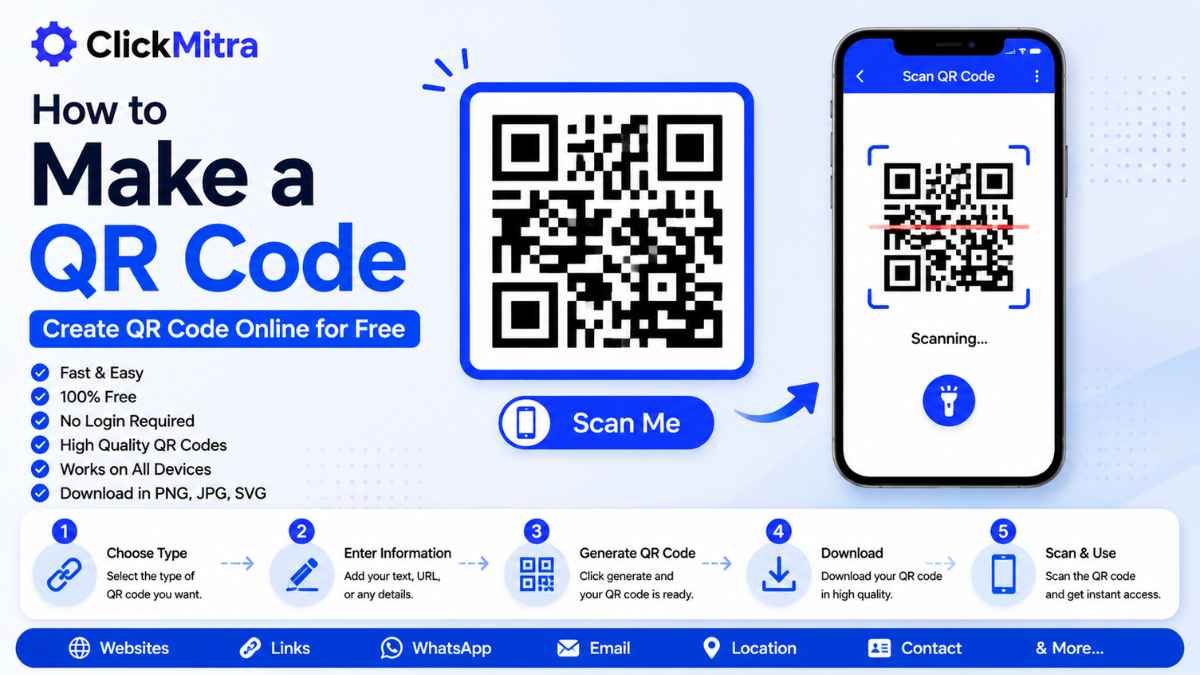
How to Make a QR Code: Create a QR Code Online for Free
Learn how to make a QR code for free online. Create QR codes for websites, links, WhatsApp, email, social media and more with a simple QR code generator.
QR codes have become a simple way to share websites, links, contact details, menus, payment information, social media profiles, and other digital content. Instead of asking someone to type a long URL, you can simply show them a QR code that they can scan with their phone.
If you want to know how to make a QR code, you don't need technical knowledge or special software. A free online QR code generator can create a QR code in just a few steps.
In this guide, we'll explain how to make a QR code, what information you can put inside one, and how to create and download a QR code online.
How to Make a QR Code Online
The easiest way to create a QR code is to use an online QR code generator.
The basic process is:
- Open a QR code generator.
- Enter the information you want to share.
- Generate the QR code.
- Preview the code.
- Download the QR code.
- Scan it with your phone to test it.
If you're searching for how to make a QR code, an online generator is usually the quickest option.
How to Make a QR Code for a Website
One of the most common uses of QR codes is sharing a website.
To create one:
- Copy the website URL.
- Open a QR code generator.
- Paste the URL into the required field.
- Generate the QR code.
- Download the generated QR code.
- Scan it using your smartphone.
Anyone who scans the QR code can then open the website without manually typing the URL.
This is particularly useful for businesses, posters, flyers, menus, advertisements, and printed marketing material.
How to Make a QR Code for a Link
You can also create a QR code for almost any web link.
For example, you could create a QR code for:
- A blog article
- A product page
- A YouTube video
- A social media profile
- An online form
- An event registration page
- A Google Maps location
- An online store
Simply enter the link into the QR code generator and create the code.
If your main goal is how to make a QR code for a URL, this is one of the simplest QR code use cases.
How to Make a QR Code for Free
You don't necessarily need to purchase software to create a basic QR code.
A free online QR code generator can allow you to enter your content, generate the QR code, and download it.
The process generally takes only a few seconds.
Before downloading, however, make sure you test the QR code with your phone. A QR code that doesn't scan correctly won't be useful after printing or publishing.
How to Make a QR Code for Text
QR codes aren't limited to website URLs.
You can also use them to share text.
For example, you could create a QR code containing:
"Thank you for visiting our store."
When someone scans the code, the stored text can be displayed on their device.
This can be useful for instructions, short messages, information cards, and other situations where you want to provide information without printing everything directly.
How to Make a QR Code for an Email Address
You can also create QR codes for email addresses.
A QR code can be configured to contain an email address and, depending on the QR format, additional information such as a subject or message.
This can make it easier for someone to contact you without manually typing an email address.
For businesses and printed marketing materials, an email QR code can be a convenient contact option.
How to Make a QR Code for WhatsApp
WhatsApp links can also be converted into QR codes.
You can create a WhatsApp link and then use that link as the content for your QR code.
For example, a business could place the QR code on:
- Business cards
- Posters
- Product packaging
- Store displays
- Advertisements
Customers can scan the code and open the WhatsApp conversation from their phone.
How to Make a QR Code for a Social Media Profile
A social media profile URL can also be turned into a QR code.
Copy your profile link, paste it into a QR code generator, and create the code.
You can then place the QR code on business cards, posters, websites, promotional material, or other places where you want people to find your profile.
How to Make a QR Code for Google Maps
QR codes can make it easier for customers to find a physical location.
To create one:
- Open Google Maps.
- Find the location.
- Copy the location's share link.
- Paste the link into a QR code generator.
- Generate the QR code.
- Download and test it.
You can then place the QR code on signs, brochures, invitations, menus, or business cards.
How to Make a QR Code Using ClickMitra
ClickMitra's QR code generator provides a simple way to create QR codes online.
Enter the information or URL you want to share, generate the code, and download it.
You don't need to manually create the complicated pattern of squares and dots. The generator handles the QR code creation automatically.
If you're learning how to make a QR code, using an online generator is much easier than trying to create one manually.
How to Download a QR Code
After generating your QR code, look for the download option provided by the QR code generator.
Depending on the tool, you may be able to download the QR code as an image.
Before using the downloaded image, scan it with your smartphone.
Testing is particularly important if you plan to print the QR code on a poster, business card, flyer, or product label.
How to Test a QR Code
Testing your QR code before publishing it is an important step.
Use your phone's camera or QR scanner and check whether it opens the correct destination.
Make sure:
- The QR code scans quickly.
- The link opens correctly.
- The content is correct.
- The QR code isn't blurry.
- There is sufficient contrast.
- The printed version is large enough to scan.
A QR code may look correct visually but still fail to work if it was generated incorrectly or becomes distorted during printing.
How Big Should a QR Code Be?
There isn't one universal size for every QR code.
The required size depends on:
- Scanning distance
- Amount of information
- Printing quality
- QR code complexity
- Where the code will be displayed
A QR code on a business card can be relatively small because users are close to it.
A QR code on a large poster may need to be larger because people could be scanning it from farther away.
Can a QR Code Be Printed?
Yes.
QR codes are designed to work both digitally and in printed materials.
You can print a QR code on:
- Business cards
- Flyers
- Posters
- Menus
- Brochures
- Product packaging
- Event tickets
- Signboards
Always test the printed QR code before distributing a large number of copies.
Can I Create a QR Code on My Phone?
Yes.
You can use an online QR code generator from your smartphone browser.
The process is generally:
Enter information → Generate QR code → Download → Test
This means you don't need a computer to create a QR code.
Are QR Codes Free to Create?
Basic static QR codes can be created for free using many online QR code generators.
However, some services may charge for advanced features such as analytics, editing existing dynamic QR codes, branding, or additional management features.
For a simple link or information-sharing QR code, a free generator is often sufficient.
Static vs Dynamic QR Codes
There are two common types of QR codes.
Static QR Code
A static QR code stores the information directly in the code.
Once created, the stored information generally cannot be changed without creating a new QR code.
Static QR codes are useful for permanent information such as a website URL, email address, or text.
Dynamic QR Code
A dynamic QR code can use a redirecting URL, allowing the destination to be changed without replacing the printed QR code, depending on the service.
Dynamic QR codes may also offer additional features such as scan tracking.
For simple personal use, a static QR code may be enough.
Tips for Creating a QR Code That Scans Properly
When you make a QR code, don't focus only on its appearance.
Follow these basic practices:
- Use sufficient contrast between the code and background.
- Don't make the code unnecessarily small.
- Keep the QR pattern sharp.
- Don't stretch the QR code.
- Avoid covering important parts of the pattern.
- Test the code before publishing it.
- Test a printed version if you're going to print it.
A simple, clear QR code is generally easier for phones to scan.
Frequently Asked Questions
How to Make a QR Code?
Open an online QR code generator, enter the information or URL you want to share, generate the QR code, download it, and test it with your smartphone.
How to Make a QR Code for a Link?
Copy your link, paste it into a QR code generator, generate the code, and download the resulting QR code image.
How to Make a QR Code for Free?
Use a free online QR code generator. Enter your information, generate the QR code, and download it.
Can I make a QR code for a website?
Yes. A website URL is one of the most common types of information used to create a QR code.
Can I make a QR code for WhatsApp?
Yes. You can use a WhatsApp link as the content of your QR code.
Can I make a QR code for an email address?
Yes. An email address can be encoded into a QR code so users can access the contact information by scanning it.
Can I make a QR code on my phone?
Yes. Online QR code generators can be accessed from mobile browsers.
Can I print a QR code?
Yes. You can download the generated QR code and print it on business cards, flyers, posters, menus, packaging, and other materials.
How do I know if my QR code works?
Scan it with a smartphone before publishing or printing it. Make sure it opens the correct information or destination.
Conclusion
QR codes provide a convenient way to connect printed and physical content with digital information. You can use them for websites, links, WhatsApp, email addresses, social media profiles, maps, text, and many other purposes.
You don't need technical skills to create one. Simply enter your information into an online QR code generator, generate the code, download it, and test it.
If you're searching for how to make a QR code, ClickMitra provides a straightforward way to create QR codes online.