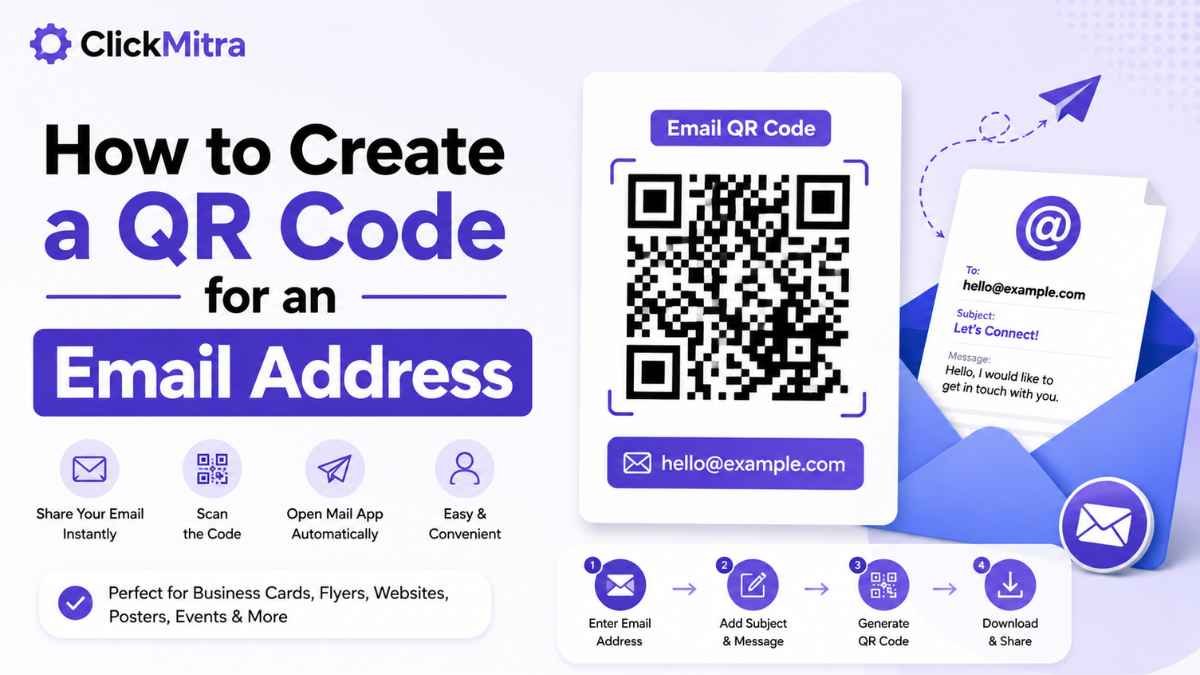
How to Create a QR Code for an Email Address
Learn how to create a QR code for an email address for free. Share your email, add a subject or message, and let people contact you with a simple scan.
A QR code can make it easier for people to contact you by email. Instead of typing an email address manually, someone can scan a QR code with their phone and open their email app with the address already available.
This can be useful for businesses, professionals, events, printed materials, business cards, posters, websites, and contact information.
In this guide, you'll learn how to create a QR code for an email address, how to test it, and where you can use it.
What Is an Email QR Code?
An email QR code is a QR code that contains an email address or an email link.
When someone scans it, their device can open a compatible email application with the email address ready to use.
For example, an email QR code can contain:
mailto:hello@example.com
You can also create an email link with a subject or message.
How to Create a QR Code for an Email Address
Creating an email QR code is straightforward with an online QR code generator.
Step 1: Get the Email Address
First, decide which email address you want people to contact.
For example:
hello@example.com
Check the spelling carefully. An incorrect email address will send people to the wrong destination.
Step 2: Open a QR Code Generator
Open ClickMitra's free QR Code Generator.
Select the email option if it is available in the tool.
Step 3: Enter the Email Address
Enter the email address that you want to share.
If the generator provides separate fields for an email address, subject, or message, enter the relevant information there.
Step 4: Add a Subject or Message
You can optionally add a default email subject or message.
For example:
Email: hello@example.com
Subject: Product Enquiry
Message: Hello, I would like more information about your product.
This can make it easier for customers or visitors to send a specific type of enquiry.
Step 5: Generate the QR Code
Click the generate button.
The QR code generator will create a scannable code containing the email information.
Step 6: Test the QR Code
Before sharing or printing the QR code, scan it using your smartphone.
Check that:
- The correct email address appears.
- The email application opens correctly.
- The subject is correct, if you added one.
- The message appears correctly, if applicable.
Step 7: Download and Share
Once you've tested the QR code, download it and use it wherever required.
You can place it on business cards, brochures, posters, websites, packaging, presentations, and other materials.
How Does an Email QR Code Work?
An email QR code stores email-related information that can be interpreted by a QR scanner.
A common format is a mailto: link:
mailto:hello@example.com
Additional information can be included for the subject and message.
When the code is scanned, the user's device can use that information to open an email application.
The exact behavior can vary depending on the smartphone, operating system, and email application being used.
Can I Create an Email QR Code for Free?
Yes. You can create a basic email QR code using a free online QR code generator.
For a simple email address, you only need to provide the address and generate the code.
If you want to include a subject or pre-written message, make sure you test the finished QR code before using it publicly.
Where Can You Use an Email QR Code?
An email QR code can be useful anywhere you want people to contact you quickly.
Business Cards
Add an email QR code to your business card so people can start an email without typing your address.
Posters and Flyers
Businesses and organizations can use an email QR code on promotional material for enquiries or support.
Websites
A QR code can be displayed on a website when you want visitors using another device to contact you.
Events
Event organizers can use email QR codes for enquiries, registration support, or general communication.
Product Packaging
Brands can add a QR code that lets customers contact support or ask questions about a product.
Presentations
Professionals can add an email QR code to presentations so attendees can contact them easily.
Can I Add a Subject to an Email QR Code?
Yes, an email QR code can include a predefined subject when the QR code is created using an appropriate email format.
For example, a business could create a QR code that opens an email with:
Subject: Business Enquiry
This can help organize incoming enquiries.
Always scan and test the final code because email handling can vary between devices and applications.
Can I Add a Pre-Filled Email Message?
Some email QR code formats can include a predefined message.
For example, you could create a QR code for customer support with a message such as:
Hello, I need help with my order.
The user can then review the message and send it through their email application.
Keep pre-filled messages short and useful. Users should still be able to review the email before sending it.
How to Make Sure Your Email QR Code Works
Always test your QR code before printing or publishing it.
Scan it with a smartphone and check whether the expected email application opens.
If you're using the QR code for business purposes, test it on more than one device if possible.
Also make sure the QR code is large and clear enough for its intended use.
Common Email QR Code Problems
Incorrect Email Address
Check the email address carefully before generating the QR code.
QR Code Is Too Small
A very small QR code can be difficult for phones to scan. Increase the size when necessary.
Poor Contrast
Use a clear contrast between the QR code and its background.
Blurry Image
Download or use a high-quality version of the QR code, especially when printing it.
Email App Does Not Open
The behavior after scanning can depend on the phone and available email applications. Test the QR code on the devices your audience is likely to use.
Can I Print an Email QR Code?
Yes. Email QR codes can be printed on:
- Business cards
- Posters
- Flyers
- Brochures
- Product packaging
- Event materials
- Menus
- Presentations
- Promotional displays
Before printing large quantities, test the QR code at its final printed size.
Create an Email QR Code Online
Creating a QR code for an email address is a simple way to make your contact information easier to access.
Enter your email information into ClickMitra's QR Code Generator, generate the QR code, scan it to test the result, and download it once everything works correctly.
Frequently Asked Questions
How do I create a QR code for an email address?
Enter your email address into a QR code generator, generate the QR code, scan it with your phone to test it, and download it once it works correctly.
Can I create an email QR code for free?
Yes. A basic email QR code can be created using a free online QR code generator.
Can an email QR code include a subject?
Yes. An email QR code can include a predefined subject when the email information is formatted appropriately.
Can an email QR code include a message?
Yes. Some email QR code formats support a pre-filled message. Test the QR code before sharing it to make sure the message works as expected.
Can I put an email QR code on a business card?
Yes. An email QR code can be placed on a business card to make it easier for people to contact you.
Does an email QR code expire?
A static QR code generally doesn't have an expiration date. However, the email address needs to remain active for people to contact you successfully.
Can I print an email QR code?
Yes. You can print an email QR code on business cards, posters, brochures, packaging, and other materials. Make sure it remains large and clear enough to scan.
Conclusion
An email QR code provides a convenient way to share an email address without requiring people to type it manually.
Enter the email address, optionally add a subject or message, generate the QR code, and test it before sharing or printing it.
For business cards, marketing material, events, and professional contact information, an email QR code can make communication faster and easier.
Create an email QR code with ClickMitra's free QR Code Generator and let people reach you with a simple scan.