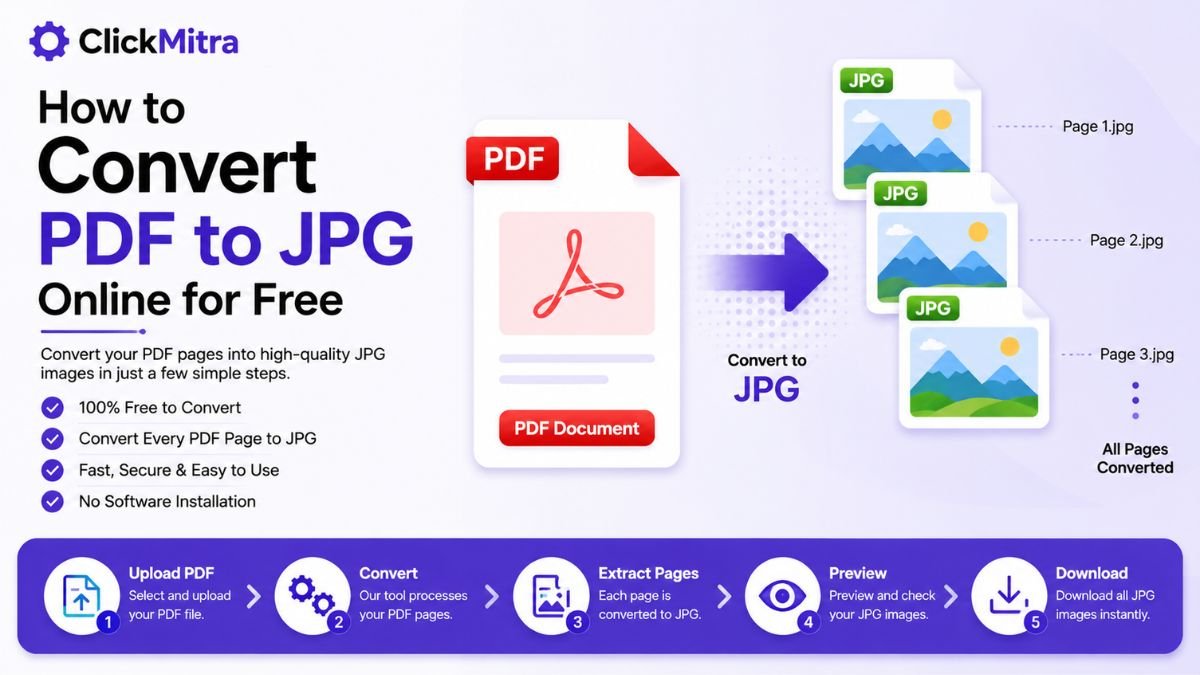
How to Convert PDF to JPG Online for Free
Learn how to convert PDF to JPG online for free. Convert single or multiple PDF pages into JPG images for sharing, uploading, presentations, and more.
PDF files are useful for documents, forms, reports, and other types of information, but sometimes you need the individual pages as image files. JPG images are easier to upload to some websites, share through messaging apps, or use in presentations and other projects.
If you're wondering How to Convert PDF to JPG Online for Free, you can do it directly in your browser using an online PDF to JPG converter. You don't need to install complicated software or manually take screenshots of every page.
In this guide, we'll explain how to convert a PDF into JPG images, how to convert multiple PDF pages, and what to check after conversion.
How to Convert PDF to JPG Online for Free
The easiest way to convert a PDF into JPG images is to use an online PDF to JPG tool.
The general process is:
- Open a PDF to JPG converter.
- Select your PDF file.
- Upload the PDF.
- Start the conversion.
- Download the JPG images.
This makes How to Convert PDF to JPG Online for Free a straightforward process for both desktop and mobile users.
Why Convert PDF to JPG?
There are several reasons you may want to convert PDF pages into JPG images.
For example, JPG files can be useful when:
- A website only accepts image files.
- You want to share a document page as an image.
- You need to add a PDF page to a presentation.
- You want to post a document page on social media.
- You need an image version of a document.
- You want to extract individual pages as images.
Instead of taking screenshots manually, a PDF to JPG converter can convert the pages directly.
Step-by-Step: Convert PDF to JPG Online
Step 1: Select Your PDF
First, find the PDF file you want to convert.
It can be a document, scanned file, report, presentation, form, or another PDF.
Check the file before uploading it to make sure you're working with the correct document.
Step 2: Open a PDF to JPG Converter
Open ClickMitra's PDF to JPG tool.
An online converter allows you to perform the conversion directly from your web browser without installing additional software.
Step 3: Upload the PDF
Select your PDF file and upload it to the converter.
The tool will process the document and prepare its pages for conversion.
If your PDF contains multiple pages, each page may be converted into an individual JPG image.
Step 4: Convert PDF to JPG
Start the conversion process.
The converter processes the PDF pages and creates JPG images from them.
The conversion time can depend on the size of the PDF and the number of pages it contains.
Step 5: Download the JPG Images
Once the conversion is complete, download the resulting JPG files.
Open the images and check that the pages have been converted correctly.
This is the final step in How to Convert PDF to JPG Online for Free.
Can I Convert Every PDF Page to JPG?
Yes, a PDF to JPG converter can convert the pages of a PDF into individual JPG images.
For example, a five-page PDF may produce five JPG files:
- Page 1 → JPG
- Page 2 → JPG
- Page 3 → JPG
- Page 4 → JPG
- Page 5 → JPG
This can be useful when you only need to use individual pages instead of the complete PDF.
How to Convert a Single PDF Page to JPG
If you only need one page from a PDF, you can first determine which page you need and then use an appropriate PDF-to-image workflow.
For a multi-page PDF, converting the entire document can create multiple JPG images, after which you can use the page you need.
This can be easier than taking a screenshot because the conversion preserves the page as an image rather than requiring manual cropping.
How to Convert PDF to JPG on Mobile
You can also convert PDF files to JPG images from a smartphone using an online converter.
The basic process is:
- Open the PDF to JPG tool in your mobile browser.
- Select the PDF from your phone.
- Upload the file.
- Start the conversion.
- Download the JPG images.
- Open the images and check the result.
This can be useful when you receive a PDF on your phone and need an image version quickly.
Does Converting PDF to JPG Reduce Quality?
The quality of the resulting JPG depends on how the PDF pages are rendered and converted.
Text-heavy pages can generally remain easy to read, while documents containing detailed graphics or photographs may require more attention to image quality.
After conversion, check:
- Small text
- Images
- Charts
- Logos
- Tables
- Signatures
- Fine details
If the JPG will be printed, check the image at its intended print size as well.
PDF to JPG vs Taking a Screenshot
Taking a screenshot is one way to turn a PDF page into an image, but it isn't always the most convenient option.
A screenshot requires you to:
- Open the PDF.
- Navigate to the correct page.
- Capture the screen.
- Crop the image.
- Repeat the process for additional pages.
With a PDF to JPG converter, the pages can be converted directly into image files.
This is particularly useful for documents containing many pages.
How to Convert a Scanned PDF to JPG
Scanned PDFs are often made up of images of physical documents.
Converting a scanned PDF to JPG can be useful when you need to use individual scanned pages as image files.
After conversion, check the resulting images to ensure that:
- Text is readable.
- Signatures are visible.
- Stamps remain clear.
- Images aren't excessively blurry.
- The complete page is included.
Can I Convert a PDF With Multiple Pages to JPG?
Yes. A multi-page PDF can be converted into multiple JPG images.
For example, a 10-page PDF can produce 10 separate JPG images, with each image representing one page.
This is useful when you need to share or use individual pages separately.
What Can You Do With a JPG After Conversion?
Once you've converted a PDF page into JPG format, you can use the image in several ways.
You can:
- Upload it to websites that accept JPG files.
- Add it to presentations.
- Share it through messaging apps.
- Include it in documents.
- Use it in graphics or designs.
- Upload it to social media.
- Store it separately from the original PDF.
Tips for Better PDF to JPG Conversion
Before converting your document, keep a few things in mind.
Check the PDF
Make sure you're converting the correct file.
Review the Output
Open the JPG images after conversion and check the important pages.
Check Text Readability
Zoom in on small text to make sure it remains readable.
Keep the Original PDF
If the original document is important, keep a copy of it even after creating JPG images.
Consider File Size
High-quality JPG images can sometimes be large. If the resulting images are too large, you can use an image compression tool to reduce their file size.
Is PDF to JPG Conversion Free?
Many online PDF to JPG converters offer free conversion for common use cases.
The available features and limits can vary between tools.
For a basic conversion, you generally need to select your PDF, upload it, convert it, and download the resulting JPG images.
Convert PDF to JPG Online With ClickMitra
If you need to turn PDF pages into JPG images, ClickMitra's PDF to JPG tool provides a simple browser-based way to perform the conversion.
Upload your PDF, start the conversion, and download the resulting JPG images.
You can then use the images for uploading, sharing, presentations, printing, or other purposes.
If you're searching for How to Convert PDF to JPG Online for Free, an online converter can save you the time and effort of manually creating screenshots.
Frequently Asked Questions
How to Convert PDF to JPG Online for Free?
Open a PDF to JPG converter, upload your PDF, start the conversion, and download the resulting JPG images. Each PDF page can be converted into an image.
Can I convert a multi-page PDF to JPG?
Yes. A multi-page PDF can be converted into multiple JPG images, with each image representing a PDF page.
Can I convert PDF to JPG on my phone?
Yes. You can use an online PDF to JPG converter through a mobile browser and download the resulting images to your smartphone.
Does PDF to JPG conversion affect quality?
The resulting image quality depends on the conversion process and the original PDF. Always check text, graphics, photographs, and other important details after conversion.
Can I convert a scanned PDF to JPG?
Yes. Scanned PDF pages can be converted into JPG images. Check the resulting images carefully to make sure text and other details remain clear.
Is PDF to JPG conversion free?
Many online tools provide free PDF-to-JPG conversion. Features and limits can vary between services.
Why should I convert PDF pages to JPG?
JPG images can be easier to upload, share, display, or use in presentations when a website or application doesn't accept PDF files.
Conclusion
Converting a PDF into JPG images can be useful when you need individual document pages in image format. Instead of taking screenshots manually, you can use an online PDF to JPG converter to process the pages directly.
The process is simple: select your PDF, upload it, convert it, download the JPG images, and check the results.
If you're looking for How to Convert PDF to JPG Online for Free, ClickMitra's PDF to JPG tool provides a straightforward way to convert PDF pages into JPG images online.