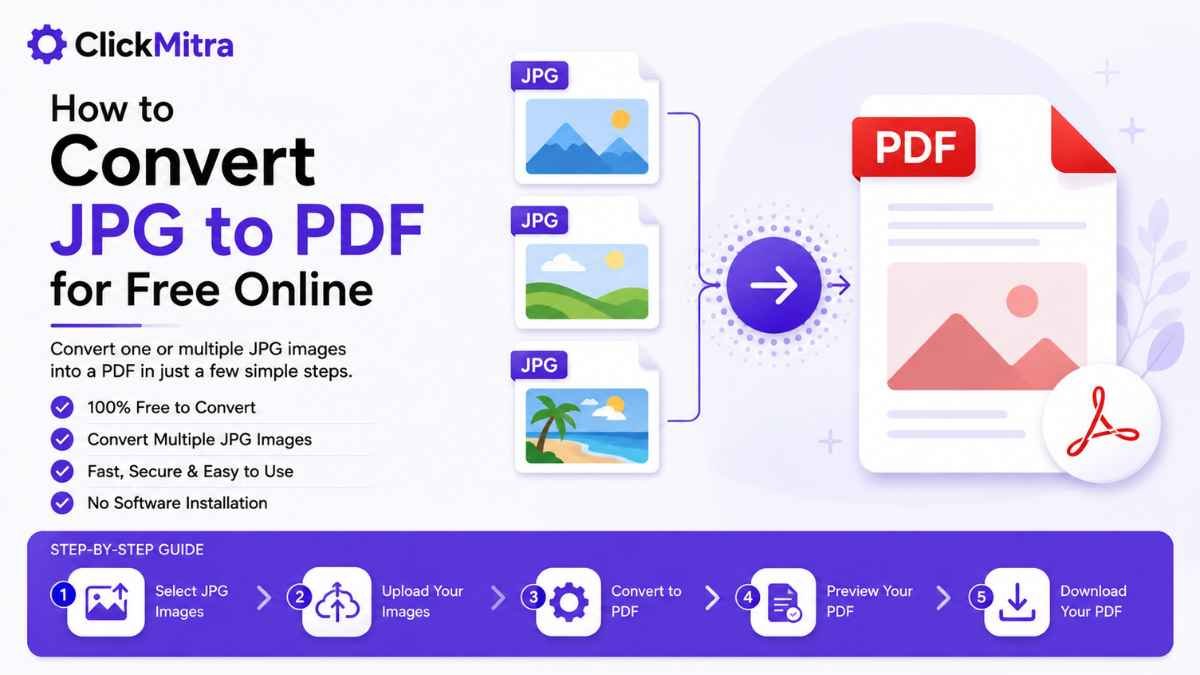
How to Convert JPG to PDF for Free Online
Learn how to convert JPG to PDF for free online. Convert single or multiple JPG images into a PDF for sharing, printing, uploading, and document creation.
If you have JPG images that you need to share, print, upload, or store as a document, converting them into a PDF can make things much easier. A PDF can keep multiple images together in a single file and is widely supported across computers and mobile devices.
The good news is that How to Convert JPG to PDF for Free Online is a simple process. You don't need complicated software or advanced technical skills. With an online JPG to PDF converter, you can turn one or multiple JPG images into a PDF in just a few steps.
How to Convert JPG to PDF for Free Online
The easiest way to convert your images is to use an online JPG to PDF tool.
Here's the basic process:
- Open a JPG to PDF converter.
- Select your JPG image or images.
- Upload the files.
- Start the conversion.
- Download the resulting PDF.
The entire process can usually be completed from your browser without installing additional software.
Why Convert JPG Images to PDF?
JPG is useful for photographs and individual images, but a PDF can be more convenient when you need to share several images as one document.
Some common reasons to convert JPG to PDF include:
- Combining multiple photos into one document
- Sending images as a single email attachment
- Creating a document from scanned images
- Preparing images for printing
- Uploading documents to websites
- Sharing receipts or invoices
- Creating a collection of photographs
If you regularly work with images and documents, knowing How to Convert JPG to PDF for Free Online can save time.
Step-by-Step: Convert JPG to PDF Online
Step 1: Select Your JPG Images
First, choose the JPG images you want to convert.
You can select a single image or multiple images depending on what you want your final PDF to contain.
For example, if you have five scanned pages saved as JPG files, you can select all five and combine them into a single PDF.
Step 2: Open the JPG to PDF Tool
Open ClickMitra's JPG to PDF tool.
An online converter lets you perform the conversion directly from your web browser.
You don't need to install a separate PDF application just to convert your images.
Step 3: Upload the JPG Files
Select the JPG files from your computer or mobile device.
If you're converting multiple images, make sure you select all the files you want to include in the PDF.
Depending on the tool, the images may appear in a preview area after they're selected.
Step 4: Arrange Your Images
When converting multiple JPG files, the order of the images can matter.
For example, if you're converting scanned pages, you may want:
- Cover page
- Page 1
- Page 2
- Page 3
Arrange the images in the correct order before creating the PDF whenever the tool provides that option.
Step 5: Convert JPG to PDF
Start the conversion process.
The tool will process your JPG images and create a PDF containing the selected images.
This is the main step in How to Convert JPG to PDF for Free Online, and the conversion can usually be completed quickly for ordinary image files.
Step 6: Download the PDF
Once the conversion is finished, download the PDF to your device.
Open the file and check that all images are present and arranged correctly.
Can You Convert Multiple JPG Images to One PDF?
Yes. Converting multiple JPG files into one PDF is one of the most useful reasons to use an image-to-PDF converter.
For example, suppose you have ten JPG images containing scanned documents. Instead of sending ten separate files, you can combine them into one PDF.
This makes the files easier to organize, share, upload, and print.
When using an online JPG to PDF converter, select all the images and arrange them in the required order before conversion.
How to Convert JPG to PDF on Mobile
You don't necessarily need a computer to convert JPG images into PDF files.
If the online converter works with mobile browsers, you can perform the conversion directly from your smartphone.
The process is similar:
- Open the JPG to PDF tool in your mobile browser.
- Select the JPG image from your phone.
- Upload the image.
- Start the conversion.
- Download the PDF.
This can be particularly useful when you have taken a photo of a receipt, document, form, or other important image and need to turn it into a PDF quickly.
How to Convert a Photo to PDF
A photo taken with a smartphone is commonly saved as an image file such as JPG.
If you need to submit that photo as a document, converting it to PDF can be useful.
For example, you might need to convert:
- A photographed document
- A receipt
- An application form
- A handwritten note
- A certificate
- A bill
- A photograph
into a PDF file.
The same JPG to PDF conversion process can be used for these images.
How to Convert Scanned JPG Images to PDF
Scanned documents are often saved as JPG images. If you have several scanned pages, converting them into a single PDF can make the document much easier to manage.
For example, you can combine:
page-1.jpg
page-2.jpg
page-3.jpg
page-4.jpg
into one PDF document.
Before converting, make sure the images are clear and arranged in the correct order.
Does Converting JPG to PDF Reduce Image Quality?
The result depends on the conversion process and the settings used by the tool.
A straightforward conversion can preserve the visual appearance of the original JPG, although the final PDF may have different file characteristics.
For important documents, always open the resulting PDF and check:
- Text readability
- Image clarity
- Page orientation
- Image placement
- Overall appearance
If you're converting images for printing, check the PDF at the intended print size as well.
What Is the Difference Between JPG and PDF?
JPG is an image format commonly used for photographs and graphics.
PDF is a document format designed to preserve a document's layout and make it easy to view, share, and print across different devices.
A JPG may be better when you simply need an individual image. A PDF can be more convenient when you need to combine multiple images or submit them as a document.
This is why How to Convert JPG to PDF for Free Online is a useful process for students, professionals, businesses, and everyday users.
When Should You Convert JPG to PDF?
Converting JPG files to PDF makes sense when the recipient or website specifically requests a PDF.
It can also be useful when:
- You have multiple images to share.
- You need one file instead of several images.
- You want to create a document from photographs.
- You need a printable document.
- You need to organize scanned pages.
- A website only accepts PDF uploads.
Tips for Creating a Better JPG-to-PDF File
Before converting your images, follow a few simple tips.
Use Clear Images
Make sure your JPG files are sharp enough for their intended purpose.
Check Orientation
Make sure portrait images aren't accidentally rotated sideways.
Arrange Multiple Images
If you're creating a multi-page PDF, put the images in the correct order.
Check the Final PDF
Always open the PDF after conversion and verify that everything looks correct.
Compress Large PDFs When Necessary
If your converted PDF becomes too large for email or uploading, you can use a PDF compression tool to reduce its file size.
Is It Free to Convert JPG to PDF Online?
Many online JPG to PDF converters provide free conversion for common use cases.
The exact limits and features can vary between tools, so check the tool you're using.
For a simple conversion, you generally only need to select your JPG file, convert it, and download the resulting PDF.
Convert JPG to PDF Online With ClickMitra
If you need a quick way to convert an image into a PDF, ClickMitra's JPG to PDF tool provides an online option without requiring dedicated PDF software.
Select your JPG image, convert it into a PDF, and download the finished document.
Whether you're converting a single photograph or several scanned pages, the process is straightforward.
Frequently Asked Questions
How to Convert JPG to PDF for Free Online?
Open an online JPG to PDF converter, upload your JPG image, start the conversion, and download the resulting PDF. For multiple images, upload them together and arrange them in the required order.
Can I convert multiple JPG images into one PDF?
Yes. Multiple JPG images can be combined into a single PDF when the converter supports multiple-file conversion.
Can I convert JPG to PDF on my phone?
Yes. You can use an online JPG to PDF converter through a mobile browser and download the resulting PDF to your phone.
Can I convert a photo into a PDF?
Yes. If your photo is saved as a JPG, you can convert it into a PDF using a JPG to PDF converter.
Is JPG to PDF conversion free?
Many online tools offer free JPG-to-PDF conversion. The available features and usage limits can vary between services.
Does JPG to PDF conversion make the image blurry?
Not necessarily. The result depends on the conversion process and image handling. Always check the final PDF before sharing or printing it.
Can I combine scanned JPG pages into one PDF?
Yes. Upload the scanned JPG pages, arrange them in the correct order, and convert them into a single PDF.
Conclusion
Converting JPG images into PDF files is useful when you need to share multiple images as one document, submit scanned pages, prepare files for printing, or upload images to a website that requires PDF format.
The process is straightforward: select your JPG files, upload them to a JPG to PDF converter, arrange them if necessary, convert them, and download the finished PDF.
If you're looking for How to Convert JPG to PDF for Free Online, ClickMitra provides a simple way to convert your JPG images into PDF files directly from your browser.