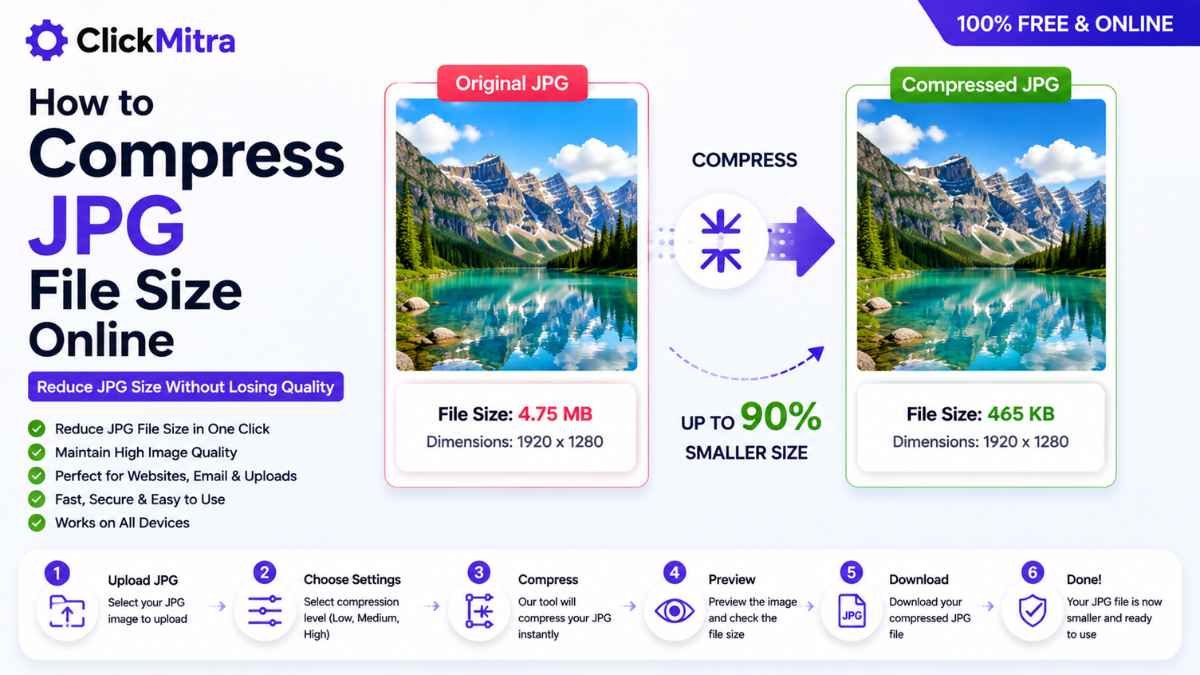
How to Compress JPG File Size Online
Learn how to compress JPG file size online and reduce image size for websites, email, uploads and sharing while maintaining good image quality.
Large JPG images can be difficult to upload, share, store, or use on websites. A high-resolution photograph can easily be several megabytes, even when the image dimensions are suitable.
If you're looking for How to Compress JPG File Size Online, an online JPG compressor can reduce the file size while keeping the image looking clear and usable.
In this guide, we'll explain how to compress JPG images online, how much you can reduce the file size, how compression affects quality, and how to choose the right compression level.
How to Compress JPG File Size Online
The easiest way to reduce the size of a JPG image is to use an online image compression tool.
The basic process is:
- Open an online JPG compression tool.
- Select your JPG image.
- Upload the image.
- Start the compression process.
- Download the compressed JPG.
- Check the image quality and file size.
Using an online tool makes it possible to compress JPG file size online without installing additional software.
Why Compress a JPG File?
There are many situations where a JPG file may be larger than necessary.
You may want to compress a JPG when:
- A website has an image upload limit.
- An email attachment is too large.
- Your website images are slowing down page loading.
- You need to save storage space.
- You want to share images faster.
- An online form has a maximum file-size requirement.
- You have many large photographs on your device.
A smaller JPG is generally easier to upload, transfer, and store.
How to Compress JPG File Size Online Step by Step
Step 1: Select Your JPG Image
First, choose the JPG image you want to compress.
You can use photographs, website images, product images, screenshots, or other JPG files.
Before compressing an important image, keep a copy of the original file.
Step 2: Open a JPG Compressor
Open ClickMitra's JPG compression tool.
An online compressor lets you compress JPG file size online directly from your browser without needing Photoshop or other image-editing software.
Step 3: Upload Your JPG
Select your JPG image from your computer, phone, or other device.
Once the file has been uploaded, the compression tool can process the image.
Step 4: Compress the Image
Start the compression process.
The tool reduces unnecessary image data to create a smaller JPG file.
Depending on the tool, you may have different compression levels available.
Step 5: Download the Compressed JPG
After processing is complete, download the compressed image.
Compare the new file with the original and check whether the image still looks good.
This is the basic process to compress JPG file size online.
How Much Can You Reduce a JPG File?
The amount of reduction depends on the original image.
For example:
Original: 4 MB
Compressed: 1.2 MB
Another image might reduce from 2 MB to 800 KB, while a different image may show a smaller reduction.
Photographs, graphics, screenshots, and images with different levels of detail respond differently to compression.
The goal isn't always to make the file as small as possible. A better approach is to achieve a significant reduction while keeping acceptable visual quality.
Does JPG Compression Reduce Image Quality?
It can.
JPG already uses lossy compression, and additional compression can remove more image information.
Light or moderate compression may produce a substantial file-size reduction with little noticeable difference.
Aggressive compression can result in:
- Blurry details
- Blocky artifacts
- Loss of fine texture
- Reduced sharpness
- Visible compression patterns
Therefore, when you compress JPG file size online, always check the resulting image before replacing the original.
How to Compress JPG Without Losing Quality
Strictly speaking, JPG compression may involve some loss of image data. However, you can minimize visible quality loss by using moderate compression.
For better results:
- Don't use the most aggressive compression setting unless necessary.
- Keep the original JPG.
- Compare the compressed image with the original.
- Don't repeatedly compress the same JPG.
- Use the appropriate dimensions for the intended use.
- Choose a suitable image format.
If you need a very small file, some quality reduction may be unavoidable.
Compress JPG vs Resize JPG
Compression and resizing are different.
JPG Compression
Compression reduces the amount of data stored in the image.
For example:
3 MB → 900 KB
The pixel dimensions can remain unchanged.
JPG Resizing
Resizing changes the dimensions of the image.
For example:
4000 × 3000 → 2000 × 1500 pixels
Reducing dimensions can also significantly reduce the file size because the image contains fewer pixels.
Which Should You Use?
If the image dimensions are already appropriate but the file is too large, compression is usually the better option.
If the image is much larger than the dimensions you actually need, resizing can provide a bigger reduction.
In some cases, combining resizing and compression produces the best result.
How to Compress JPG File Size for a Website
Large images can increase the amount of data a website needs to load.
Before uploading JPG images to your website, check their:
- Dimensions
- File size
- Image quality
- Format
- Intended display size
For example, if an image is displayed at approximately 1200 pixels wide, uploading a 5000-pixel-wide version may be unnecessary.
You can resize the image and then compress it before uploading.
This can help reduce the amount of data visitors need to download.
How to Compress JPG for Email
Large JPG files can also be inconvenient as email attachments.
If a photograph is several megabytes in size, you can compress it before attaching it.
For example:
Original: 6 MB
Compressed: 1.5 MB
The exact result depends on the image and compression level.
After you compress JPG file size online, check the image before sending it, particularly if the recipient needs to read small text or view fine details.
How to Compress JPG on Mobile
You can compress JPG images from your smartphone using an online JPG compressor.
The process is simple:
- Open the JPG compression tool in your mobile browser.
- Select the image from your phone.
- Upload the JPG.
- Start compression.
- Download the smaller file.
- Check the result.
This is useful when you need to upload an image to a website or send it through an app with a file-size limit.
Can You Compress Multiple JPG Files?
If the compression tool supports batch processing, you can compress multiple JPG images at once.
This is particularly useful when you have a large collection of photographs or website images.
For example, you could select several product images, upload them together, compress them, and download the optimized versions.
Batch processing can save considerable time compared with processing each image individually.
Why Are Some JPG Files So Large?
JPG file size depends on several factors.
These include:
- Image dimensions
- Image resolution
- Amount of detail
- Compression level
- Original camera quality
- Metadata
- How the JPG was originally saved
A 5000 × 4000 photograph will generally contain much more image data than a 1200 × 900 image.
Similarly, a detailed photograph can require more storage than a simple graphic.
What Is the Best JPG Compression Level?
There isn't one compression level that is ideal for every image.
For website images, you generally want a practical balance between file size and visual quality.
For photographs used in personal sharing, a somewhat stronger reduction may be acceptable.
For professional images, product photographs, or graphics containing important details, you may want to use lighter compression.
The best way to compress JPG file size online is to compare the compressed result with the original and choose the smallest file that still looks good for its intended purpose.
Should You Compress JPG Before Uploading to a Website?
In many cases, yes.
Uploading unnecessarily large images can increase page weight and consume more bandwidth.
Before uploading an image, consider whether its dimensions and file size are appropriate for the location where it will appear.
Compressing JPG images before uploading can help keep image files more manageable.
How to Compress JPG Without Software
You don't need professional image-editing software just to reduce the file size of a JPG.
An online JPG compressor can handle the basic process through your browser.
The workflow is straightforward:
Select JPG → Upload → Compress → Download
This makes online compression convenient when you only need to reduce file size and don't need advanced editing features.
What Happens to the Original JPG?
A good workflow should leave your original file unchanged.
The compressed version should be treated as a new copy.
This is useful because you can always return to the original if the compressed image has too much quality loss.
For important photographs and graphics, keeping the original is recommended.
Compress JPG File Size Online With ClickMitra
If your JPG image is too large for a website, email, upload, or online form, ClickMitra's image tools can help you create a smaller file.
Upload your JPG, compress it, and download the optimized version.
The process is designed for users who want to compress JPG file size online without installing dedicated image-editing software.
After compression, open the image and compare it with the original to make sure the quality is appropriate for your needs.
Frequently Asked Questions
How to Compress JPG File Size Online?
Upload your JPG to an online compression tool, start the compression process, and download the smaller JPG file. Check the resulting image before using it.
How can I reduce JPG size online?
You can use an online JPG compressor to remove unnecessary image data and create a smaller JPG file.
Can I compress JPG without losing quality?
You can reduce the file size while keeping quality loss minimal by using moderate compression. However, JPG compression can involve some loss of image data.
How much can I compress a JPG?
The amount depends on the original image, its dimensions, detail, and existing compression. Some images can be reduced substantially while others show a smaller reduction.
Can I compress JPG images on my phone?
Yes. You can use an online JPG compression tool through your mobile browser and download the compressed image.
Does compressing JPG change its dimensions?
Not necessarily. Compression can reduce file size while keeping the same pixel dimensions. Resizing is what changes the width and height.
How do I compress JPG for a website?
Choose an appropriate image size for the location where it will be displayed, then compress the JPG before uploading it to your website.
Is it safe to compress JPG online?
Use a reputable image tool and check its handling of uploaded files and privacy information, especially when processing sensitive images.
Should I compress JPG or resize it?
If the dimensions are already suitable, compression may be enough. If the image is unnecessarily large in dimensions, resizing it can provide a larger reduction.
Conclusion
Large JPG files can create problems when uploading, sharing, storing, or using images online. Compressing them can make the files significantly smaller while maintaining suitable visual quality.
The simplest process is to upload the JPG to an online compressor, process the image, download the smaller file, and compare it with the original.
If you're looking for How to Compress JPG File Size Online, ClickMitra provides a straightforward way to compress JPG images directly from your browser.
Keep the original image whenever possible, and avoid using extremely aggressive compression when image quality is important.