How to Combine PDF Files Online
Learn how to combine PDF files online for free. Merge multiple PDF documents into one file, arrange pages, and download a single organized PDF.
When you have multiple PDF documents for the same project, assignment, report, application, or business task, keeping them as separate files can become inconvenient. Combining them into one PDF makes the documents easier to organize, share, upload, and store.
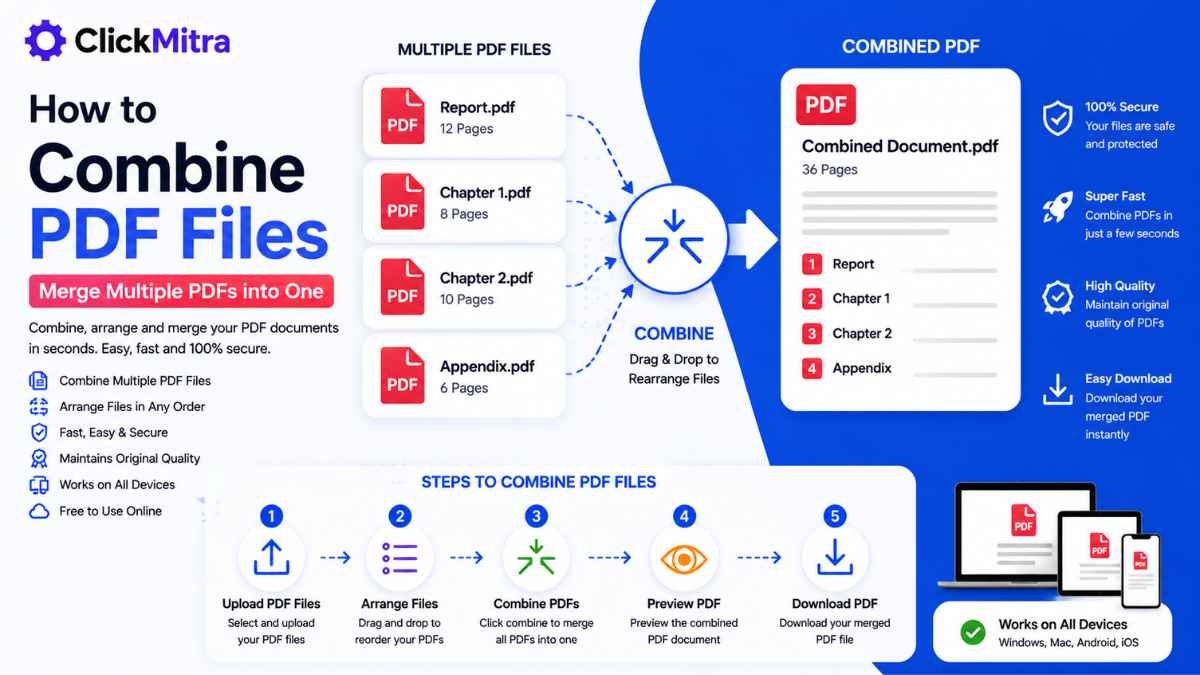
If you want to know how to combine PDF files, you can use an online PDF merger without installing additional software. The process is simple: upload your PDF files, arrange them in the required order, merge them, and download the resulting document.
In this guide, we'll explain how to combine PDF files online, how to arrange pages, combine multiple documents, and what to check before downloading the final PDF.
How to Combine PDF Files Online
The easiest way to combine PDF files is by using an online PDF merger.
The basic process is:
- Open an online PDF merger.
- Select the PDF files you want to combine.
- Upload the files.
- Arrange them in the required order.
- Click the merge or combine option.
- Download the new PDF.
You don't need to manually copy pages between documents or install complicated PDF software.
How to Combine Multiple PDF Files
If you have several PDF documents that belong together, you can combine them into a single file.
For example, you may have:
- Cover page
- Report
- Charts
- Supporting documents
- References
- Appendices
Instead of sending six separate PDFs, you can combine multiple PDF files into one organized document.
Simply upload the PDFs to the merger, arrange them in the correct order, and create the final file.
How to Combine PDF Files Step by Step
1. Select Your PDF Files
Start by identifying the PDF documents you want to merge.
You can select two PDFs or several documents, depending on the tool's supported limits.
Before uploading, it is useful to give your files descriptive names so that you can identify them easily.
2. Upload the PDFs
Open ClickMitra's PDF merge tool and upload your documents.
The files will appear in the tool once they have been selected.
3. Arrange the PDFs
The order of the files matters.
For example, if you are combining a report, you may want the files arranged as:
Cover → Introduction → Main Report → Supporting Documents → References
Most PDF merger tools allow you to change the order before creating the final document.
4. Merge the Documents
Once you've arranged the files correctly, start the merge process.
The tool combines the pages from the selected documents into a single PDF.
5. Download the Combined PDF
After the process is complete, download the new PDF.
Open the file and check the pages to make sure everything is in the correct order.
This is the basic process for how to combine PDF files online.
Why Combine PDF Files?
There are several reasons to merge PDFs into one document.
A single PDF can be easier when:
- Sending documents by email
- Uploading documents to a website
- Submitting an application
- Sharing a business report
- Creating a project file
- Organizing invoices
- Combining scanned documents
- Preparing presentations or reports
Instead of managing several individual files, you can keep everything together in one document.
How to Combine PDF Files Without Software
You don't necessarily need Adobe Acrobat or another desktop application to merge PDFs.
An online PDF merger can allow you to combine PDF files directly through your web browser.
The workflow is straightforward:
Upload → Arrange → Merge → Download
This can be particularly useful when you only need to merge PDFs occasionally and don't want to install dedicated software.
How to Combine PDF Files on Mobile
You can also merge PDF documents from your smartphone.
Open an online PDF merger in your mobile browser and select the PDF files stored on your device.
The general process is:
- Open the PDF merger.
- Select your PDF files.
- Upload them.
- Arrange the files.
- Merge the PDFs.
- Download the combined document.
This allows you to combine PDF files without needing access to a computer.
How to Combine Two PDF Files
If you only have two PDF documents, the process is particularly simple.
Suppose you have:
PDF 1: Project Report
PDF 2: Project Appendix
Upload both files, place the report first and appendix second, and merge them.
The result will be one PDF containing the pages from both documents.
How to Combine PDF Files in the Correct Order
Page order is important when merging documents.
Before clicking the merge button, check:
- Which document should come first?
- Are supporting documents in the correct position?
- Is the appendix at the end?
- Are any files duplicated?
- Are all required documents included?
Taking a few seconds to check the order can prevent having to merge the documents again.
Can You Combine More Than Two PDF Files?
Yes, if the PDF merger supports multiple files.
You may be able to combine several documents into one PDF in a single operation.
For example, you could merge:
PDF 1 + PDF 2 + PDF 3 + PDF 4 + PDF 5
into one document.
This is especially useful for reports, project documentation, business records, and scanned paperwork.
Does Combining PDFs Reduce Quality?
Normally, simply merging PDF documents does not require reducing the quality of the pages.
The pages from the original PDFs are placed together into a new document.
However, the exact behavior can depend on the PDF processing tool.
If the original documents contain high-resolution images or scanned pages, check the resulting PDF before deleting your original files.
Can You Combine Scanned PDF Files?
Yes. Scanned documents are generally already stored as PDF pages and can be merged like other PDF documents.
For example, you might have:
- Scanned ID document
- Scanned application
- Supporting certificate
- Signed form
You can combine them into one PDF for easier submission or sharing.
How to Combine PDF Files for Email
If you need to send several PDF documents by email, combining them can make the process more organized.
Instead of attaching multiple files separately, you can create one PDF containing all the required documents.
However, remember that combining files can create a larger PDF.
If the final PDF becomes too large for your email attachment limit, you can compress the PDF after merging.
How to Combine PDF Files for Online Submission
Many websites require users to upload documents as a single PDF.
For example, an application portal may ask for one document containing several supporting pages.
In such cases, you can merge the required PDFs first and then upload the resulting file.
Before submitting, check the final PDF carefully to make sure all required pages are included.
Combine PDF Files With ClickMitra
ClickMitra's PDF tools make common PDF tasks accessible directly through your browser.
If you need to combine PDF files, upload the documents to the PDF merger, arrange them in the required order, and create the combined PDF.
After downloading the file, open it and check the pages before sharing or submitting it.
What to Do If the Combined PDF Is Too Large
Combining several PDF documents can result in a large final file.
If the merged PDF exceeds an upload or email limit, you can compress it after merging.
A practical workflow is:
Merge PDFs → Check file size → Compress PDF if necessary → Download
This can be particularly useful for online applications and websites that have strict upload limits.
Tips Before Combining PDF Files
Before you merge your documents, keep these points in mind:
- Make sure all required PDFs are included.
- Check the file order.
- Remove duplicate documents.
- Keep copies of the original files.
- Check the final page count.
- Open the final PDF after merging.
- Check the file size before uploading.
- Compress the PDF if necessary.
These simple checks can prevent mistakes in the final document.
Frequently Asked Questions
How to Combine PDF Files?
Upload your PDF documents to an online PDF merger, arrange them in the desired order, merge them, and download the resulting PDF.
Can I combine multiple PDF files into one?
Yes. If the PDF merger supports multiple files, you can upload several PDFs and combine them into one document.
How do I combine two PDF files?
Upload both PDFs to an online PDF merger, arrange them in the required order, and click the merge option.
Can I combine PDF files for free?
Many online PDF tools provide free PDF merging. Available file limits and features can vary between tools.
Can I combine PDF files without software?
Yes. An online PDF merger allows you to merge documents directly from your browser without installing desktop software.
Can I combine PDF files on my phone?
Yes. You can use an online PDF merger through a mobile browser and select PDF files stored on your smartphone.
Can I combine scanned PDFs?
Yes. Scanned PDF documents can generally be merged just like other PDF files.
Will combining PDFs reduce quality?
Simply merging PDFs doesn't necessarily reduce the quality of their pages. However, the result can depend on how the PDF processing tool handles the documents.
What if my combined PDF is too large?
You can compress the merged PDF using a PDF compression tool to reduce its file size before uploading or sharing it.
Can I rearrange PDFs before combining them?
Yes. Many PDF merger tools allow you to arrange the documents in the desired order before creating the final PDF.
Conclusion
Combining separate PDF documents into one file can make your documents easier to organize, share, upload, and store. Whether you're working with two PDFs or several documents, an online PDF merger can simplify the process.
The process is straightforward: upload your PDFs, arrange them in the correct order, merge them, and download the final document.
If you're searching for how to combine PDF files, ClickMitra provides an easy way to merge PDF documents online without installing additional software.